A Guardian card isn’t just a card with a phone number printed on it — it’s a system that tells the finder what to do next and gets the family notified in the shortest possible time. These 5 features are what set Guardian cards apart, and the reason they actually make a difference in the moments that matter.
📍 One-tap location share, two-channel delivery
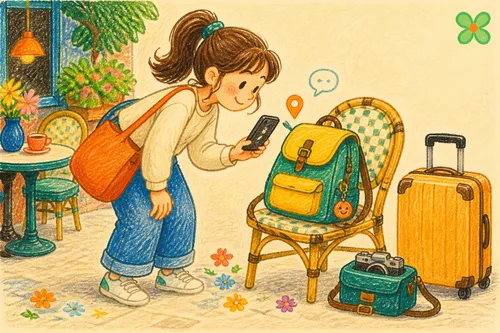
When a finder taps “Share my location”, OMIPOKA delivers the GPS coordinates + Google Maps link to the card owner via BOTH push and email — at the same time.
iOS push is notoriously unreliable due to Apple’s gating. Email isn’t. Tapping the map link from iOS Mail opens the Maps app directly for navigation. The finder can also forward the location via LINE / SMS / native share to the family — without needing an OMIPOKA account.
🛡 Two-layer sensitive-info protection + one-tap block
Sensitive fields (medications, allergies, the elder’s home address) aren’t shown on the public page by default — finders must actively tap to expand them (Layer 2 confirmation).
The moment they’re expanded, the owner gets a push AND an email noting which fields were viewed and the finder’s city. If the viewer isn’t a family member, or the card has expired, the owner can tap ”🚨 Block now” directly from the notification or email — taking the public page offline instantly to stop further exposure.
🎴 Every card type has on-scene guidance
Guardian cards aren’t blank personal-info forms. Each layout is designed for its pickup scenario, so finders don’t have to guess:
- Child card: how to comfort, allergies, who to call first
- Dementia card: agitation triggers, home address, whether to wait with them
- Pet card: whether they bite, chip number, fear triggers
- Medical card: medication list, allergies, chronic conditions, emergency contacts
Finders just follow the on-screen guidance — no need to interpret on the fly.
🆘 Standard emergency channels always visible
Every Guardian public page carries a “Standard emergency channels” block at the bottom, always shown — regardless of whether the owner is online or got the notification:
- Local police (Taiwan: 110; or 119 for medical)
- Pet registry (Taiwan: pet.gov.tw)
- Women & children’s police division (for child cases)
It’s the safety net for the finder — even if OMIPOKA and the family are unreachable, they still know who to call next.
✉️ Email backup — covered even when iOS push misses
On iPhone, receiving Web Push requires installing OMIPOKA as a home-screen PWA and granting permission — a high friction path many users never complete.
So every important Guardian event also sends an email: card opened, sensitive info viewed, finder shared location. Three events, three emails, every time. Email arrives reliably in iOS Mail / Gmail, and CTAs inside the email open the map or card editor directly.
👨👩👧 Family contacts get the same alerts
In the card editor “emergency contacts” section, you can add an email per contact (it’s never shown on the public page). When “finder shared a location” or “sensitive info viewed” fires, every family member gets the email at the same moment the owner does — no more single-point-of-failure on whether one person’s phone got the push.
Each family member can unsubscribe themselves from any alert email’s footer; you can also disable individual contacts from the editor. Per recipient × card × event, at most one email per minute (absorbs double-clicks / browser retries) so a quick burst can’t flood the inbox.
🎯 Why these features matter together
Lost loved ones, medical emergencies, sensitive-info leaks — all three share one thing: time pressure.
Guardian cards aren’t designed to be “useful after the fact” — they’re designed so the owner knows immediately and the finder acts immediately. Two-channel delivery means you don’t miss it; finders must actively tap-to-confirm before sensitive sections expand + one-tap block lets you stop bleeding fast; on-scene guidance keeps the finder calm; the emergency-channels footer is the last-resort safety net.
This isn’t a “just in case” card — it’s a “when it actually happens, every second counts” card.
Create your first Guardian card: From the card-create page, pick “Guardian card” and choose the medical / dementia / child / pet template that fits.